

How do I install Lavender?
Ready to install Lavender?

All it takes is two steps to get started!
Step 1: Install the Extension
Head to 👉 install.lavender.ai
Click “Add to Chrome” to install the Lavender extension.
🗒️ A few things to note:
- Lavender works best in Google Chrome
- Microsoft Edge also supports Chrome extensions
- Check our supported browsers here.
Step 2: Sign In & Start Your Free Trial
After installing, you’ll be redirected to sign in.
Choose:
- Sign in with Google, or
- Sign in with Microsoft
🎁 This activates your 7-day free trial of Lavender Pro.
🔍 How to Confirm It’s Working
You should now see the Lavender icon in your browser extensions.
To double-check: visit 👉 chrome://extensions/
Next Steps: Start Using Lavender
✉️ Using Gmail?
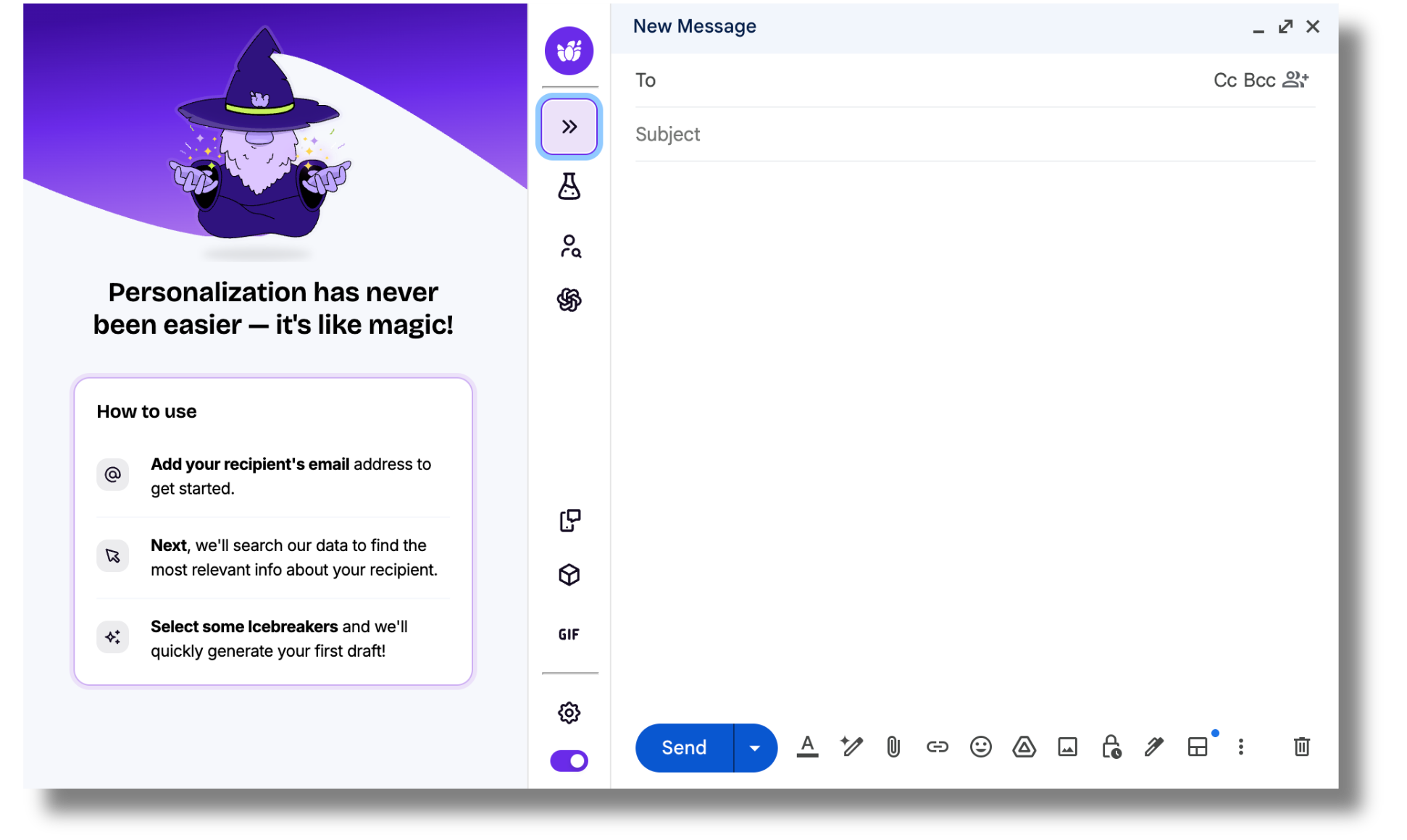
Lavender will appear automatically when you draft an email.
It’ll look something like this:
✉️ Using Outlook?
You'll need to complete a few more steps to set up Lavender in Outlook, but don’t worry, we’ve got you covered!
Installing Lavender for Outlook (Mac)
Installing Lavender for Outlook (PC)
🤝 Using Salesloft or Outreach?
You’ll need to connect your account.
See full steps here:
🧡 Using HubSpot?
Make sure the email you use to log into Lavender matches your HubSpot email.
👉 Read the full HubSpot integration guide
Curious about where else you can use Lavender?
Check out some of our frequently asked integration questions and more information on Lavender Anywhere!