
Lavender for job seekers (for CS Parliament members)
Welcome! 🙌
Thanks for your interest in using Lavender for your job search 💜
To get access to your free account as a member of the CS Parliament community, follow these steps:
Installing Lavender
Start by installing Lavender.
Once installed, you can move to the next step to confirm it's installed correctly!
Confirming Installation
Please confirm that the extension is installed so we can properly apply the promo.
There are a couple of ways you can do this!
1. Extensions Bar
While in Chrome, click the Extensions icon (the puzzle piece) in the top right corner of your browser window and confirm the Lavender extension is listed.
If you see Lavender/our logo, you've installed Lavender correctly! 🎉
2. Installation Page
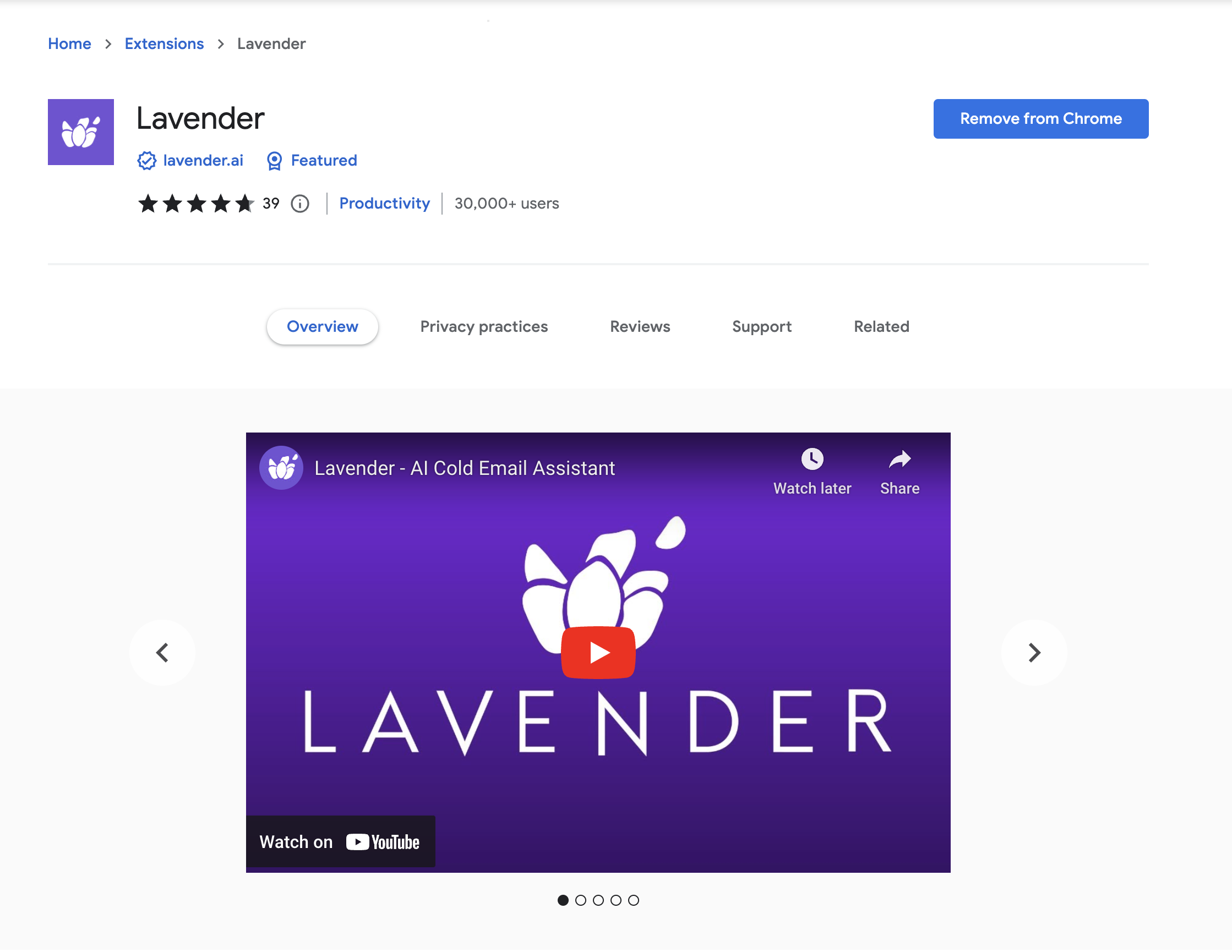
Head to install.lavender.ai and make sure you see "Remove from Chrome." If you see "Remove from Chrome," you're all set - Lavender has been installed!
If you see "Add to Chrome," that means Lavender has not been installed yet. You'll want to click "Add to Chrome" and follow the installation prompts!
Receiving the promotional subscription
We need your information to apply the promo for your free subscription!
The quickest way is to add your email address to this form 👇
https://forms.gle/8zToijRydV7cRzav7
Since you're a community member, don't forget to add the community name to the form. Y'all have a special promo!
Once you've submitted the form, your trial will be extended within five business days.
Next Steps 🎉
We have a few helpful resources for using Lavender for your job search.
First, you can check out our email framework for job seekers. This will help guide you in reaching out to hiring managers!
Will Allred covers 6 tips for writing a perfect email in this article.
You can also reach out to us at support@lavender.ai! We're happy to help you.💜