

Product Help
Installing Lavender for Outlook for Mac
You can install Lavender on your Outlook desktop app. 🎉
Go direct to your add-ins here
Versions of Outlook that support custom add-ins include:
- Windows 11 Office 365
- Mac OS Venture
💡 Note:
- Business Basic does not support add-ins
- Add-ins for Outlook Desktop are only supported on the Microsoft Business Standard and above tiers
Need help removing the add-in? Check out: Uninstalling the add-in
If you're an Admin, try adding your whole team through an admin deploy.
Mac OS
Step 1: Open Outlook and navigate to New Mail

Step 2: Click on the three dots

Step 3: Click "Get Add-ins" > "My add-ins" > "add a custom add-in" > "add from file"

Step 5: Download the Outlook integration .xml file and add the file
You can find the file at the bottom of this page or by clicking here.
You will then get the option to select "Install."
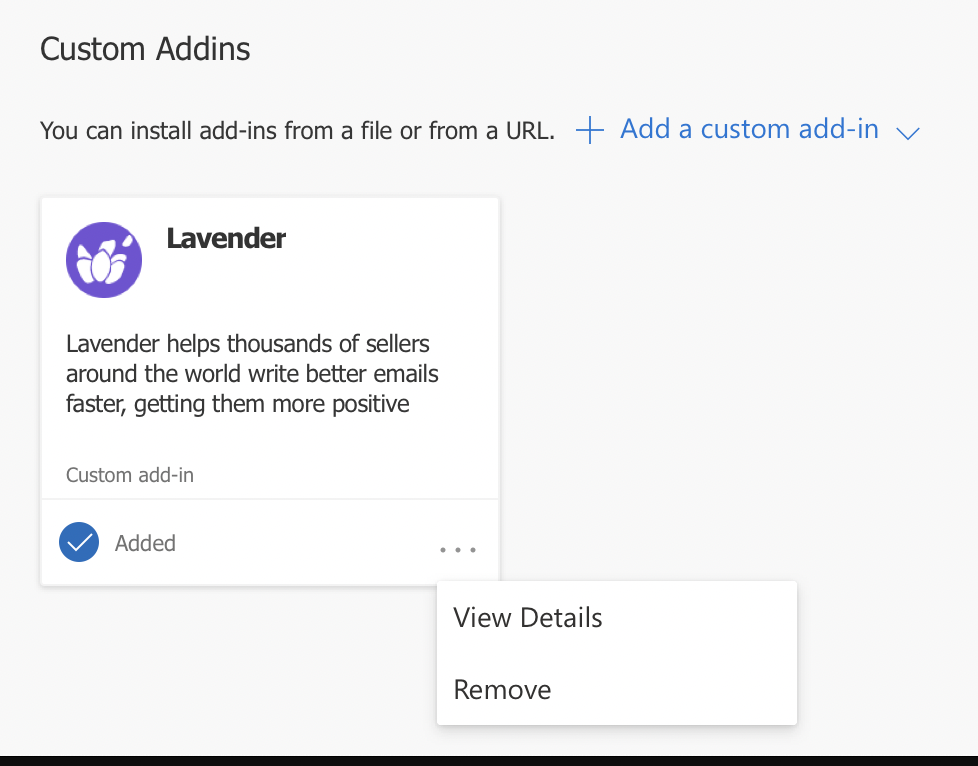
You should click Install and see Lavender under your custom add-ins!

Step 6: Pinning the add-in
You will need to have a new email opened for this step
You will need to have a new email opened for this step
Once you install the add-in, you'll want to pin it for easy access.
First, click the 3 dots > click customize toolbar

Next drag and drop the Lavender add-in!
All done! Now you can start using Lavender with your email. 🎉
Uninstalling the Add In
If you need to install a new version of Lavender for Outlook, or uninstall, follow these steps. Reference screenshots above, if needed!
Step 1: Head to Get Add Ins
Step 2: Click my add-ins
Step 3: Scroll to Custom add-ins
Step 4: Click the 3 dots
Step 5: click remove
Outlook file 👇
This file will work for New Outlook only